
AI Interaction Builder lets you easily create interactive learning experiences without any coding knowledge. It is the AI feature for interactive e-learning that we’ve developed with the “learners first” approach. It’s the first of its kind and seamlessly positioned in this e-learning authoring tool to increase interactivity in online courses for more knowledge retention.
You can create scenario-based activities, 3D models, simulations, quizzes, branching scenarios, drag-and-drop elements, and more interactive activities, simply by dragging and dropping, and AI will help suggest the best options for your content for your learners.
You can watch our step-by-step guide video if you prefer learning with videos.
How to make online courses interactive? #
Adding AI-powered interactive elements to your page for your learners is quite straightforward. First, click on Actions to create an AI Interactive activity on your Mini Course’s edit page, .
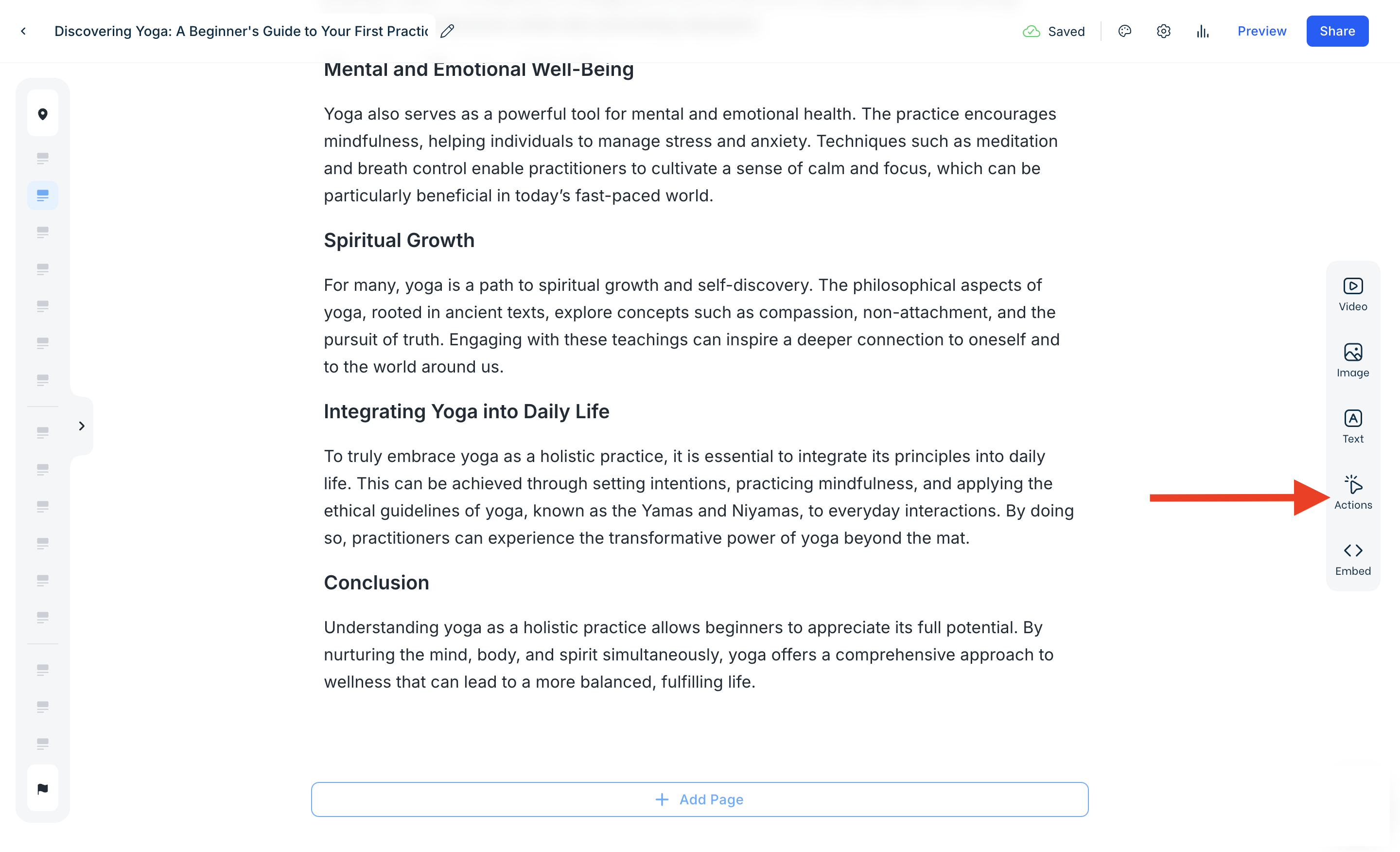
Drag & drop AI Interaction Builder to your page or just double-click to add it.
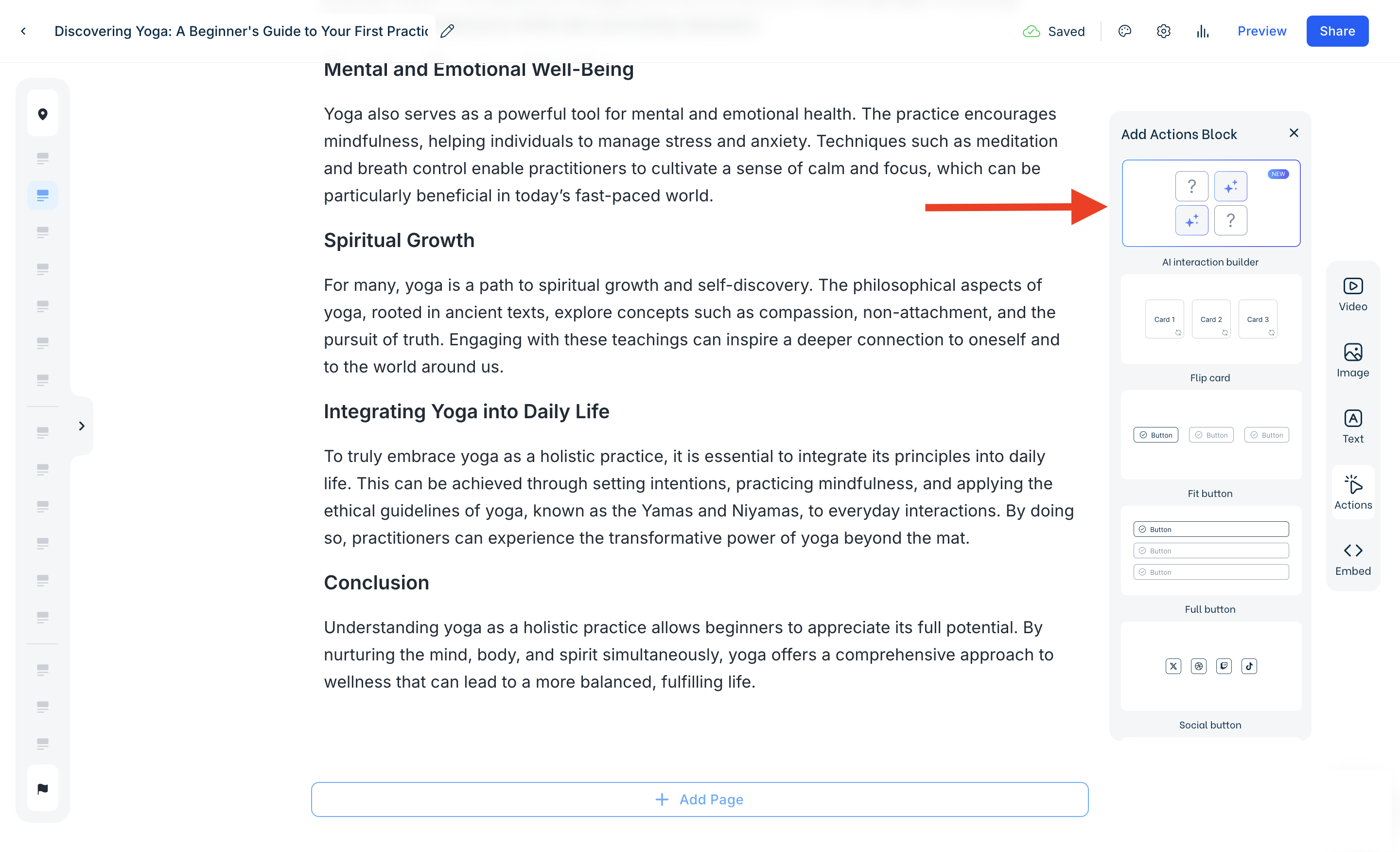
Choosing the type #
After that, you will see two option:
-
Use existing page content
-
Guide AI with my descriptions
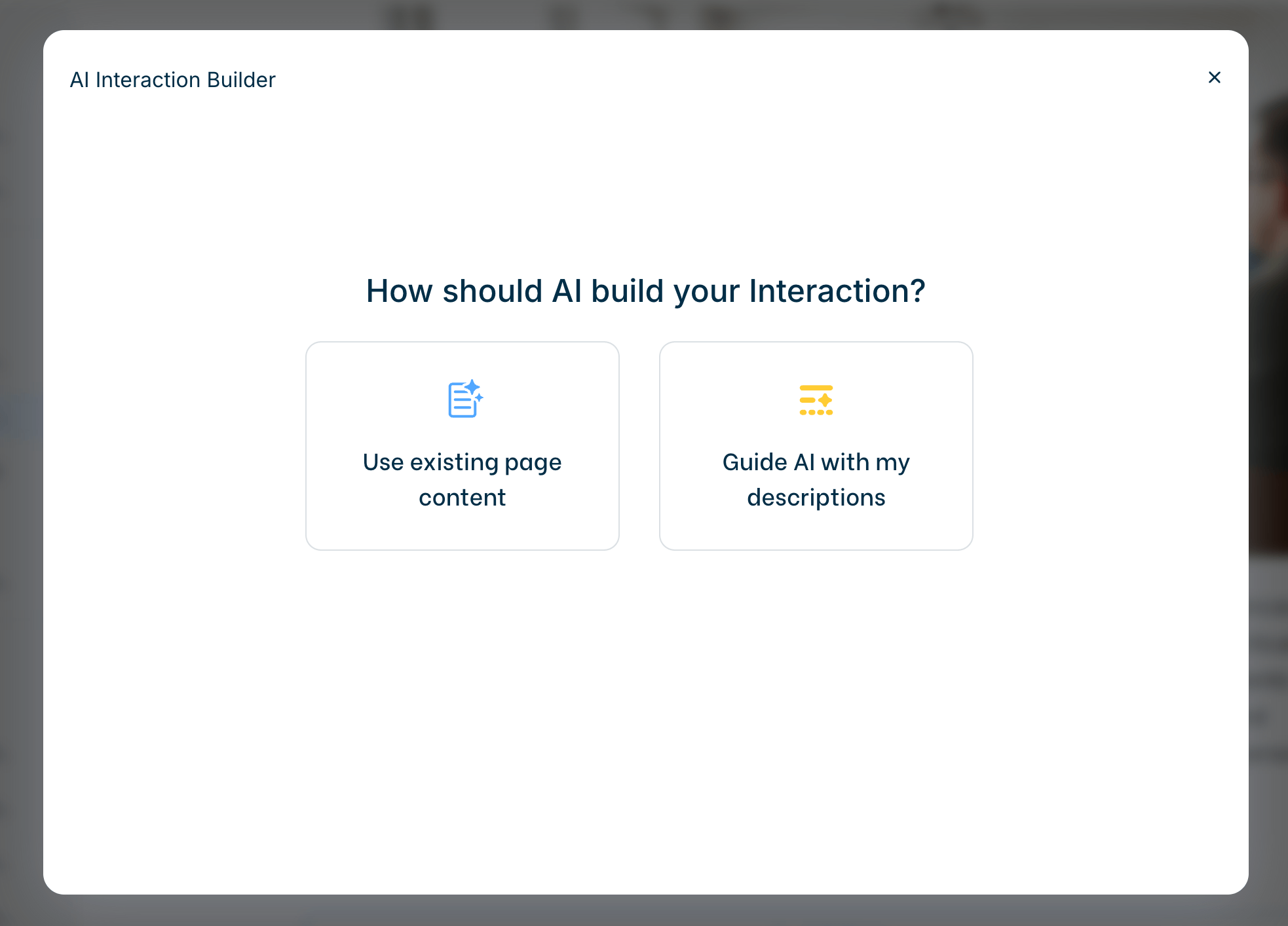
Use existing page content #
If you choose Use existing page content, AI will use the content from your page to create an interactive activity.
After a few seconds, you will see three different Interactive activity option. You can choose an activity that best fits your content to create an engaging learning experience.
ℹ️ AI Interaction builder uses the language in which the page is written.
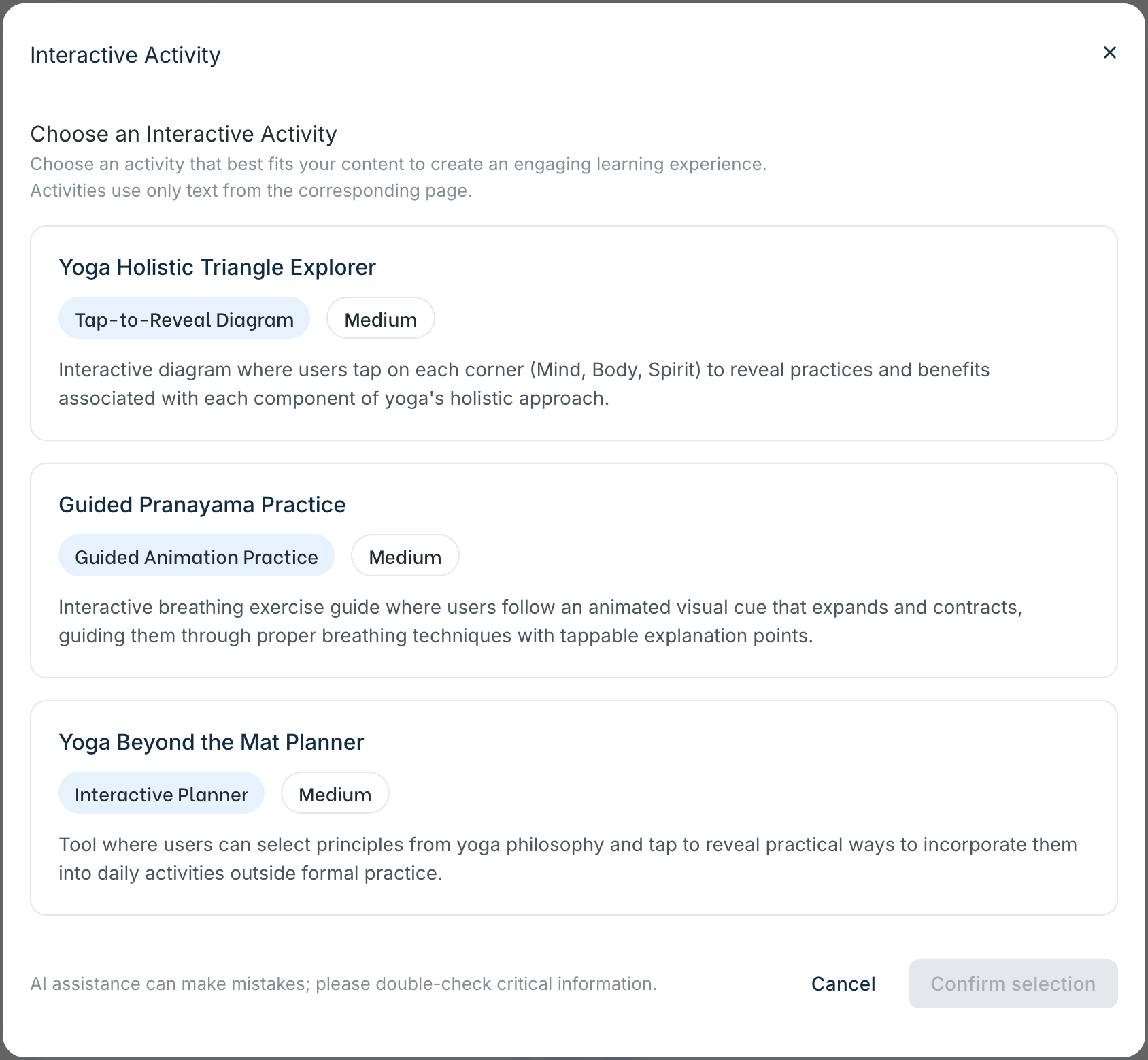
You will see further information for each interactive content:
- Name
- Type (e.g. Tap-to-reveal Diagram)
- Difficulty (Low, Medium, Hard)
- Short description
With clicking on activity, you can see:
- Educational value (Low, Medium, High)
- Elements
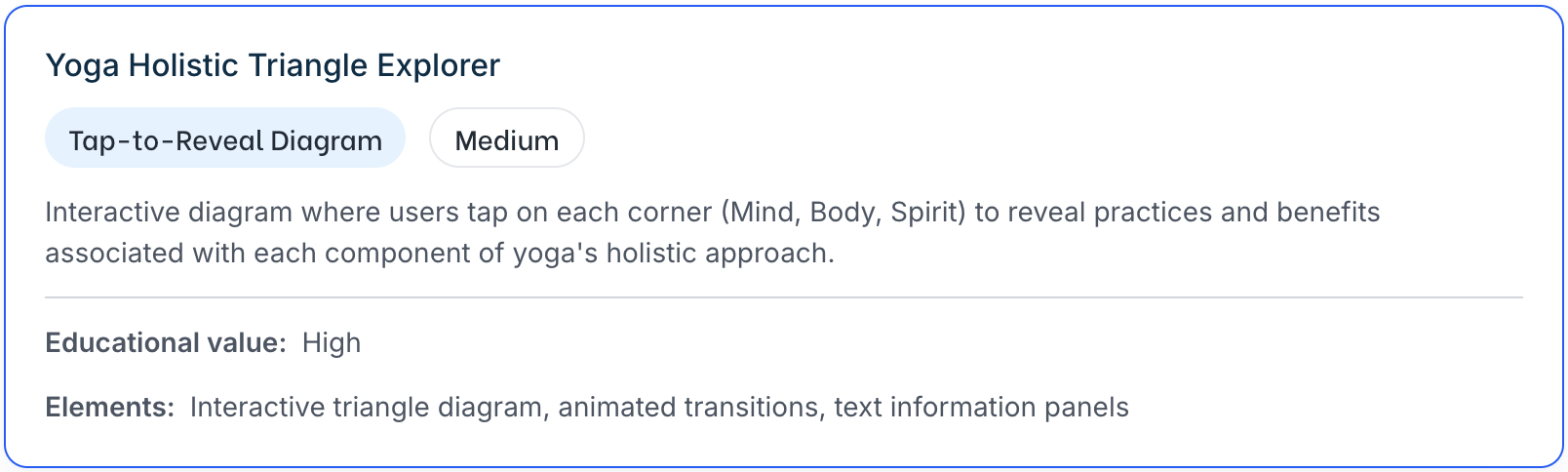
After you decide to choose one of the options, click Confirm selection.
Guide AI with my descriptions #
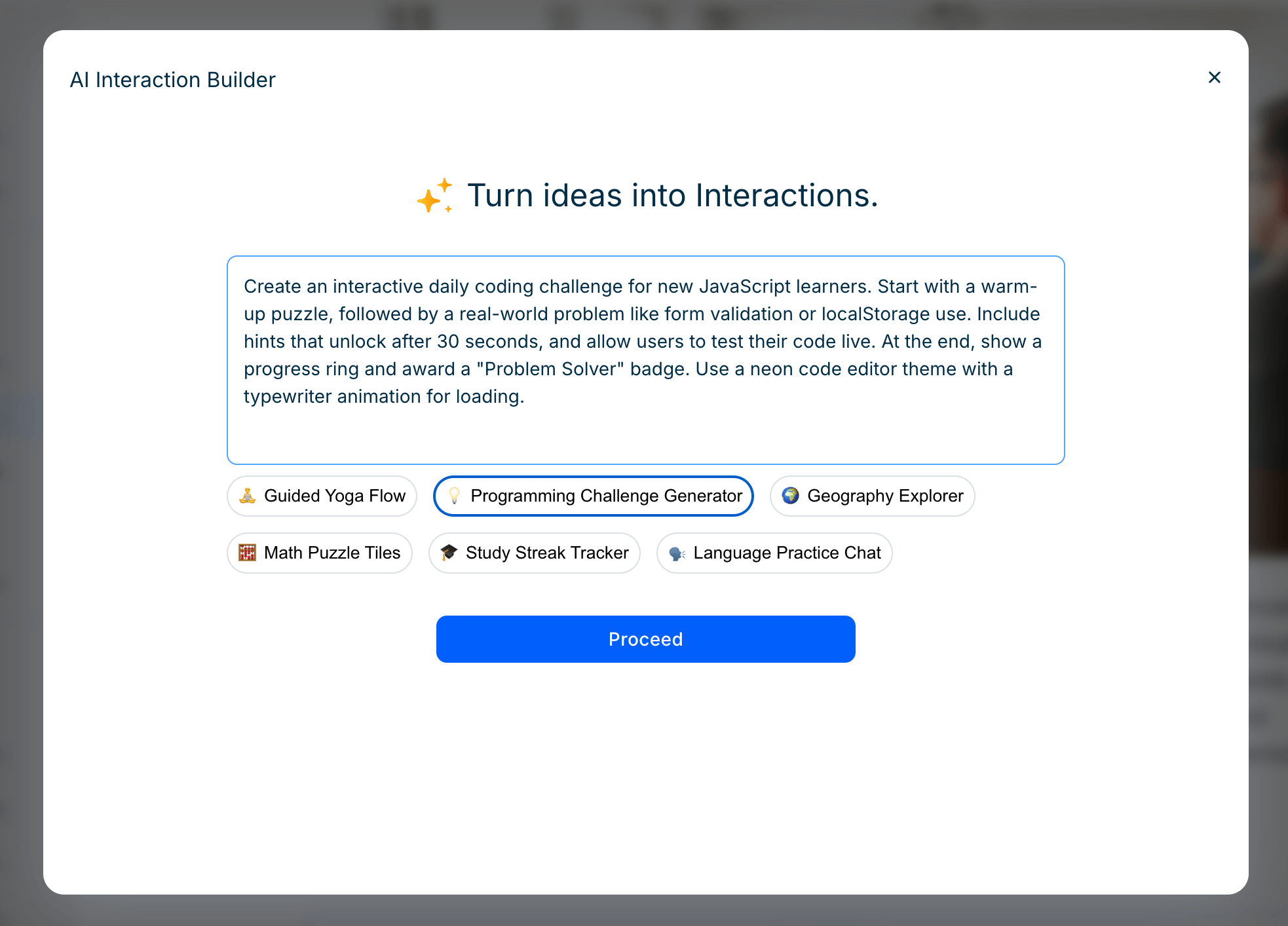
If you choose Guide AI with my descriptions, you will be redirected to enter a prompt. AI will use only your guidance to create the activity.
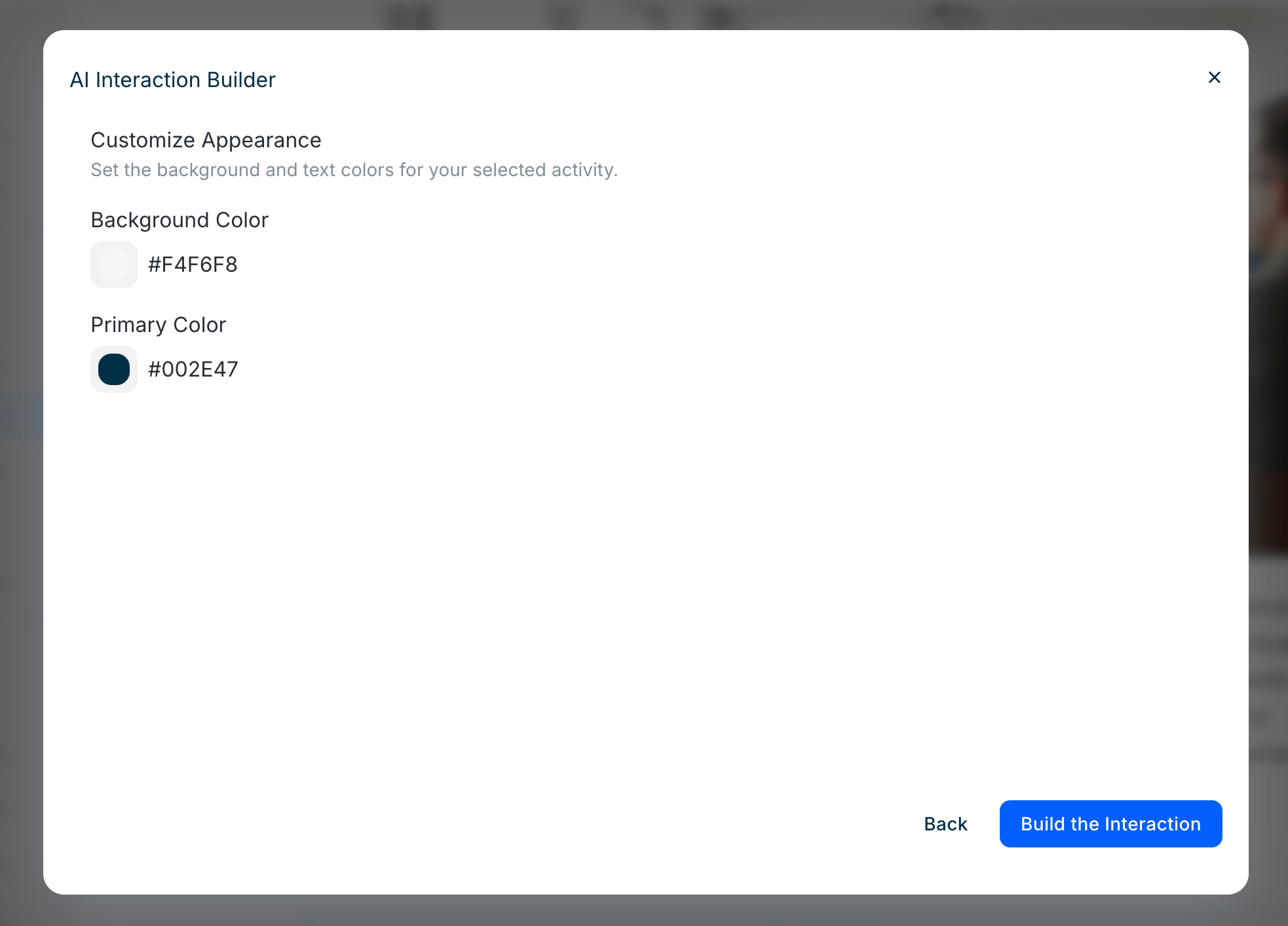
Customize Appearance #
Select the colors you want for your Interactive Activity. You can use the default colors, change them here, or update them later using the chat function after the activity is created.
Chat with Interaction #
You will see the AI create the interaction in the chat interface. This may take up to a minute.
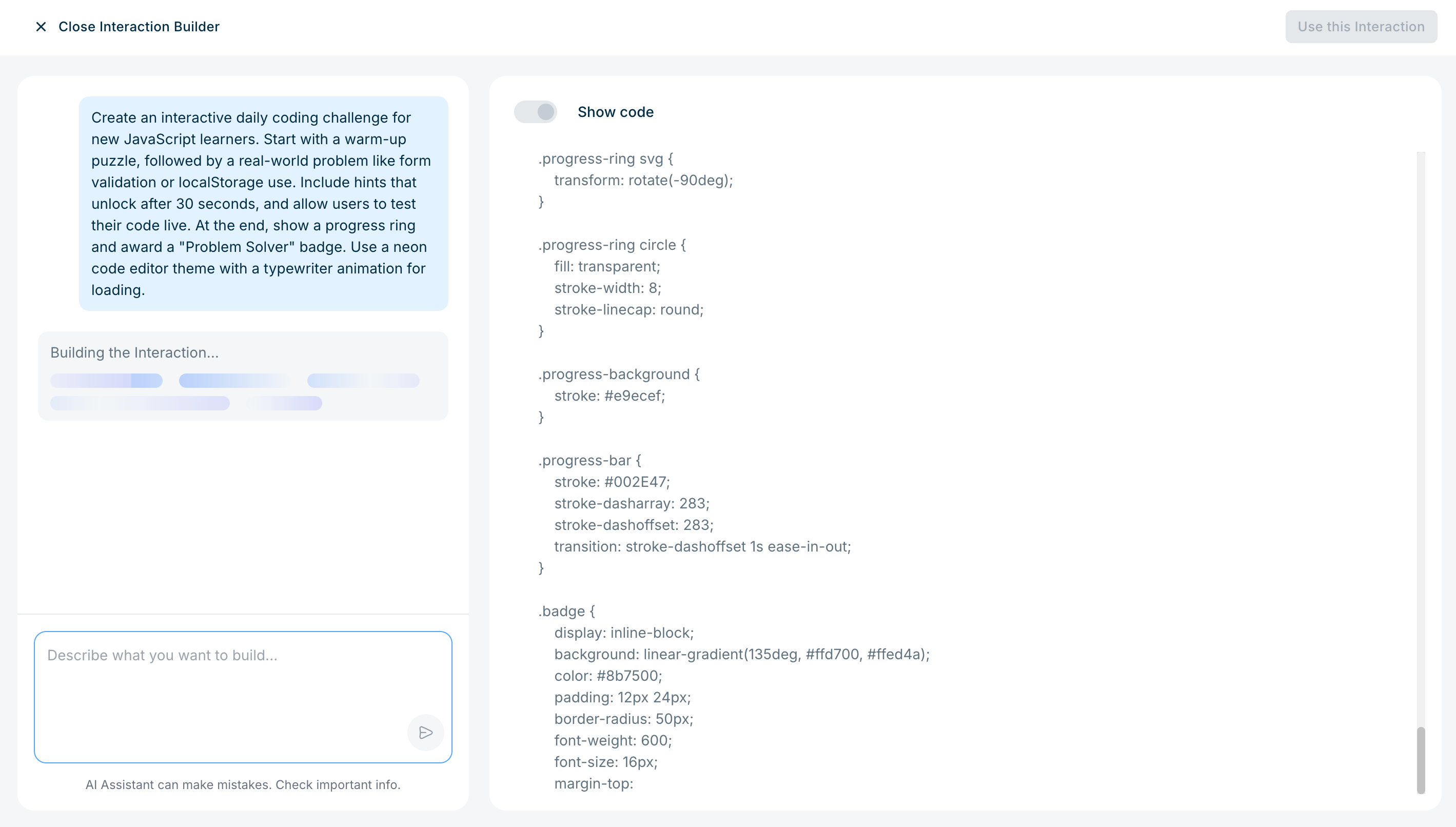
After the interaction is created, you can try it yourself before adding it to your page.
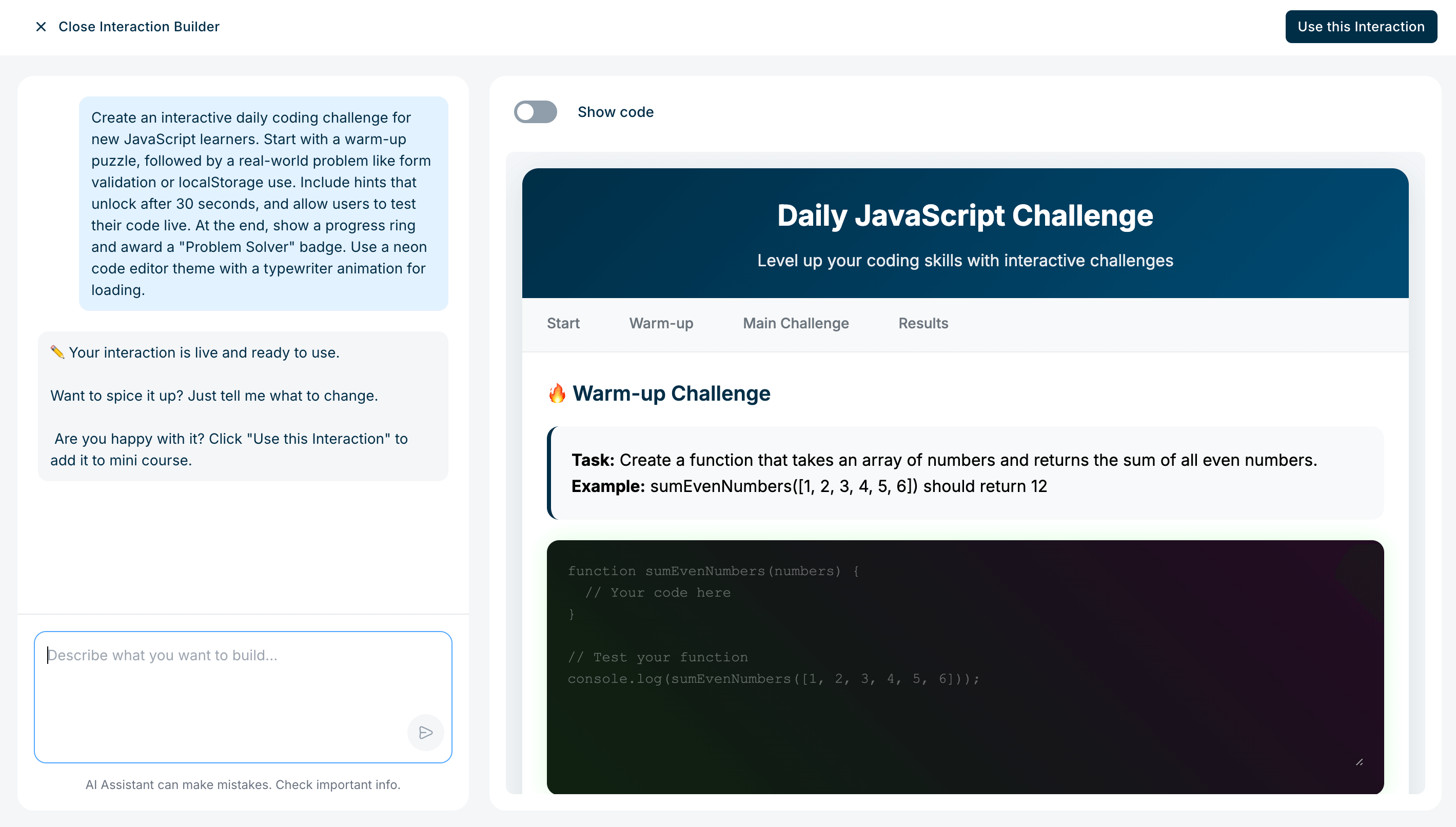
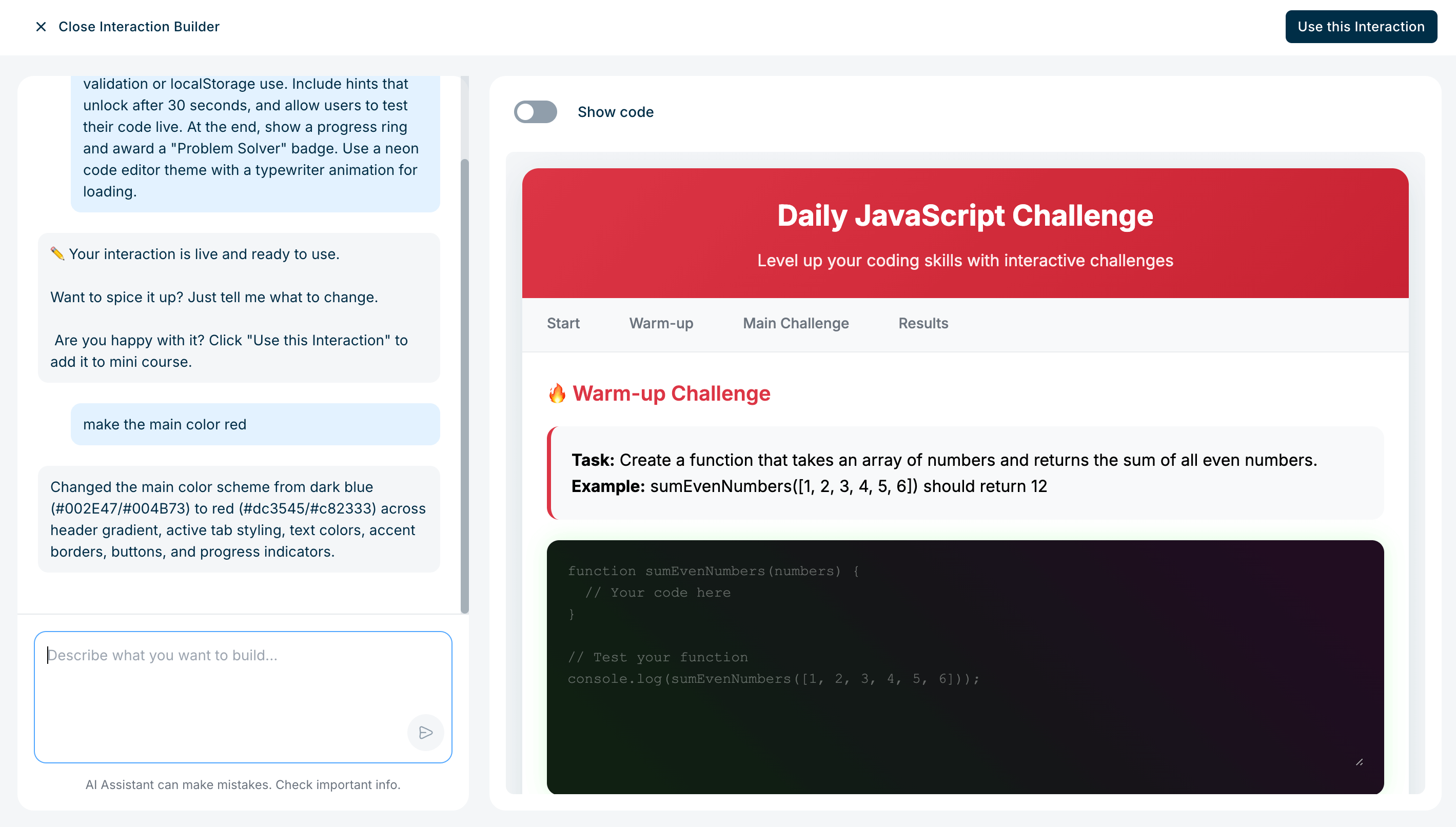
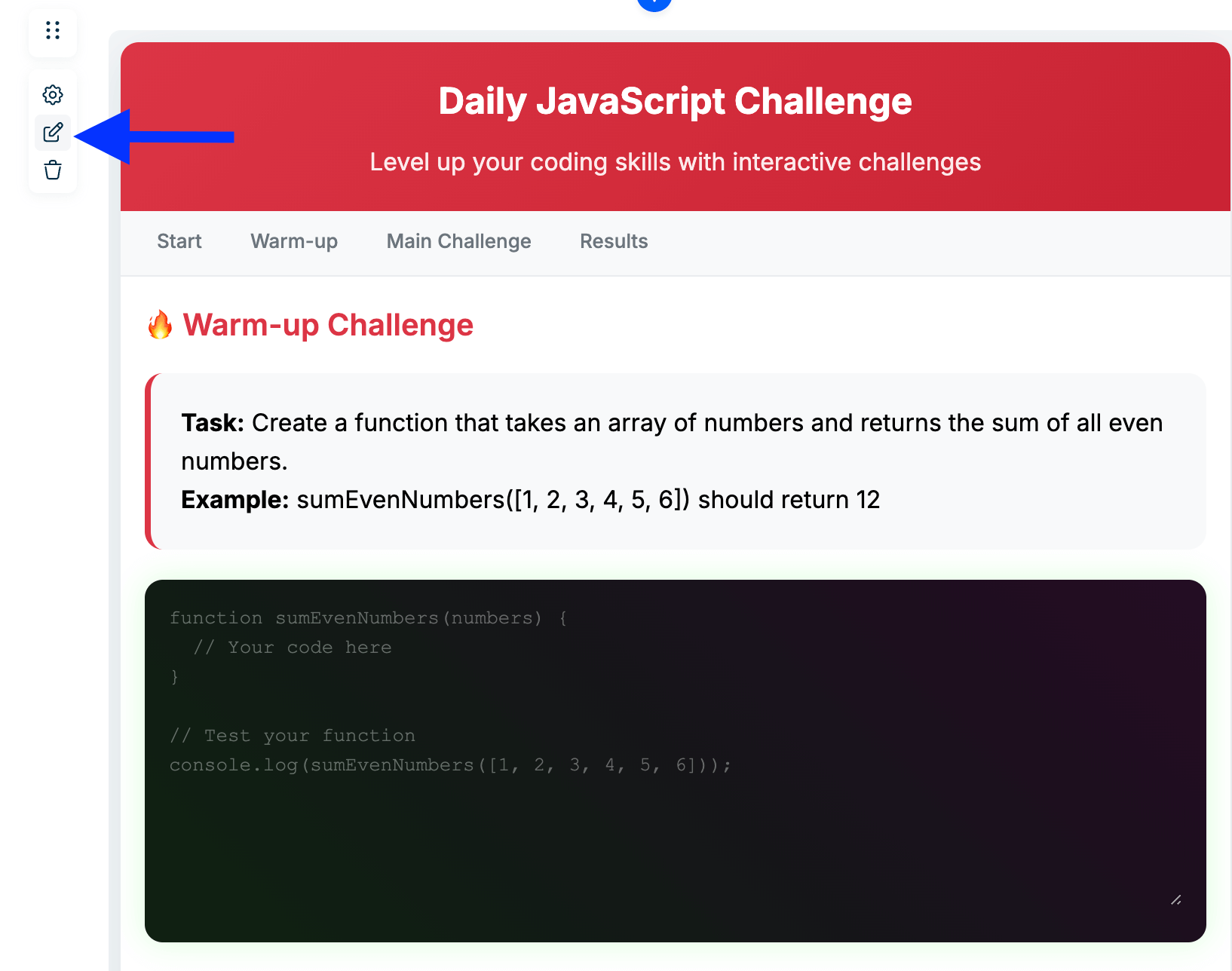
You can edit your interaction anytime using the chat or by updating the code after clicking Use this Interaction. The interactive learning element in your e-learning course is updated immediately.
We have also hosted a webinar on how to make online courses interactive. You can watch it below if you are interested.
❓Please reach out us via support@minicoursegenerator.com if you have any question about AI Interaction Builder.


